CCTV iDVR-RT16 Bedienungsanleitung Seite 1
Stöbern Sie online oder laden Sie Bedienungsanleitung nach Digitale Videorecorder (DVR) CCTV iDVR-RT16 herunter. CCTV iDVR-RT16 User manual Benutzerhandbuch
- Seite / 88
- Inhaltsverzeichnis
- LESEZEICHEN


- User Manual 1
- SAFETY PRECAUTIONS 2
- Contents 3
- Disclaimer 6
- Warning 6
- Caution 7
- Preventing Malfunction 8
- Regulatory 8
- Package Contents 9
- I.CONTROLS 10
- ) [-] : To Decrease settings 11
- [+] : To Increase settings 11
- 8-Channel 12
- 16-Channel 12
- 3. Remote Controller 14
- 16ch : 1~16 17
- * G : GND 17
- * Alarm Input( AI) 17
- 8ch: 1~8 17
- III.QUICK START PAGE 22
- Time & Date Setting 23
- IV.LIVE VIEWING 24
- 2.1. Screen Display 26
- 3.2. Repositioning 27
- 4. Zooming 28
- 5. Spot Monitor 29
- V. OPERATION 30
- 2. NAVIGATION THE MENU 31
- VI. SETUP 32
- 1.3. EVENT 34
- 2. CAMERA 35
- 3. RECORD 38
- 3.3. Event Recording 40
- 4. SCHEDULE 43
- 4.2. Holiday Setup 45
- 5. DISK 46
- CD/DVD±R 47
- 5.2. Recording DISK 48
- 5.3. SMART STATUS 49
- 6. NETWORK 50
- 4 KBPS~ 8 MBPS” 51
- 6.3. EMAIL 52
- 6.5. DDNS (Dynamic DNS) 54
- Router: 57
- : Port Forwarding /DMZ 57
- 7.1. GENERAL 58
- 7.2. ALARM 59
- 61
- 8. SYSTEM 62
- 8.2. TIME 63
- 8.3. ACCOUNT 64
- 8.4. UPDATE 66
- VII. PAN/TILT ZOOM CONTROL 68
- VIII.PLAYBACK /SEARCH 72
- 2. Time Search 73
- Go to Search 76
- 4.Log List Search 77
- IX.BACKUP 79
- 1.3 Back up Range Setup 81
- 2. Auto Back up(FTP) 82
- 3. Log List Back up 83
- X.SPECIFICATION 84
- WEEE Symbol Information 87
- <Memo> 88
Inhaltsverzeichnis
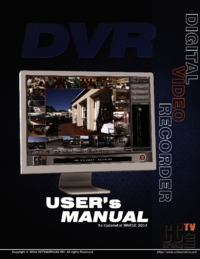
iDVR-RT16 Real Time Stand Alone Surveillance DVR User Manual
9 DIGITAL VIDEO RECORDER I.CONTROLS 1. Front Panel 1) POWER : Press this button to turn the power on
10 DIGITAL VIDEO RECORDER 9) EXT. Search : Press this button to start external HDD search. 10) USB : USB co
11 DIGITAL VIDEO RECORDER 2. Rear Panel Connectors 8-Channel 16-Channel
12 DIGITAL VIDEO RECORDER 1) Camera Inputs : BNC input connectors ( 8 / 16CH) 2) Camera Outputs : LOOP-OUT connec
13 DIGITAL VIDEO RECORDER 3. Remote Controller DVR ID: Set the proper DVR System ID through which to opera
14 DIGITAL VIDEO RECORDER 4. Virtual Keypad for Mouse Control This DVR provides a virtual on-screen key
15 DIGITAL VIDEO RECORDER II. INSTALLATION & CONNECTIONS 1. Camera, Monitor, Audio, Alarm sensor and Power co
16 DIGITAL VIDEO RECORDER 2. Alarm inputs and Alarm outs 2.1. Connection of N.O (Normally Open) The maximum
17 DIGITAL VIDEO RECORDER 2.2. Connection of N.C (Normally Close)
18 DIGITAL VIDEO RECORDER 3. PTZ and controller connection 3.1. Connecting the Speed Dome directly into DVR 3.2
1 DIGITAL VIDEO RECORDER SAFETY PRECAUTIONS CAUTION: TO REDUCE THE RISK OF ELECTRIC SHOCK, DO NOT REMOVE COVER (
19 DIGITAL VIDEO RECORDER 3.3. Connecting Single User with 2 DVR Configuration Multiple PTZ cameras are co
20 DIGITAL VIDEO RECORDER 4. PC system requirement for Network connection. (a) Pentium-4 2.0GHz or Higher (b)
21 DIGITAL VIDEO RECORDER III.QUICK START PAGE ADMIN and the default password is “000000” The Default User ID “
22 DIGITAL VIDEO RECORDER Time & Date Setting When the DVR is powered on for the very first time, the time an
23 DIGITAL VIDEO RECORDER IV.LIVE VIEWING 1. Display Overview 1. Recording Mode Backgroun
24 DIGITAL VIDEO RECORDER 3. Status Bar (1) Indicate Built-in CD/DVD R/W is connected. It‟s changed to blue
25 DIGITAL VIDEO RECORDER 2. Multi-screen Display and Sequencing 2.1. Screen Display. Select any camera fo
26 DIGITAL VIDEO RECORDER 3. Quick button for multi screen Display. 3.1. Quick multi split mode change - Press
27 DIGITAL VIDEO RECORDER 4. Zooming During live view mode, it is possible to zoom into a section of the screen
28 DIGITAL VIDEO RECORDER 5. Spot Monitor In addition to the Main Monitor, attaching a Spot Monitor enables u
2 DIGITAL VIDEO RECORDER Contents Disclaimer ...
29 DIGITAL VIDEO RECORDER V. OPERATION 1. LOG IN/OUT. You must log on to the DVR with valid password to operate
30 DIGITAL VIDEO RECORDER 2. NAVIGATION THE MENU 1. Log on the DVR at admin level or user with configure level.
31 DIGITAL VIDEO RECORDER VI. SETUP 1. DISPLAY 1.1. GENERAL 1. The menus are displayed with option
32 DIGITAL VIDEO RECORDER 1.2. SWITCH Setup (Monitor Configure) 1. The menus are displayed with options on
33 DIGITAL VIDEO RECORDER 4) SPLIT MODE : Select desired sequence mode to switching. 5) USE CHANNEL: Select
34 DIGITAL VIDEO RECORDER 2. CAMERA Configure the properties of cameras such as Video Adjustment (Brightness,
35 DIGITAL VIDEO RECORDER To define the motion view area cell-by-cell, do the following:On the front
36 DIGITAL VIDEO RECORDER 4) Title: Allows you to create a unique name for each camera. a. The camera title has
37 DIGITAL VIDEO RECORDER 3. RECORD 3.1. Record General 1. The menus are displayed with options on
38 DIGITAL VIDEO RECORDER 3.2. Continuous /Normal Recording The DVR comes with a certain preset settings
3 DIGITAL VIDEO RECORDER 1. DISPLAY ...
39 DIGITAL VIDEO RECORDER 3.3. Event Recording Users may set different event recording parameters on a camera b
40 DIGITAL VIDEO RECORDER 2) Motion Recording One Motion detection can be configured to one channel. One camera c
41 DIGITAL VIDEO RECORDER b. Event Edit - Press [enter] to edit multiple event. The menus are displayed with o
42 DIGITAL VIDEO RECORDER 4. SCHEDULE When the schedule is on, users may define their own daytime, n
43 DIGITAL VIDEO RECORDER 1) A cursor (highlighted menu) can be moved using the Direction buttons [ ]. 2) Selec
44 DIGITAL VIDEO RECORDER 4.2. Holiday Setup This allows you to create up to 32 holidays. If a holiday schedule
45 DIGITAL VIDEO RECORDER 5. DISK 5.1. DISK Manager Disk Manger is used to format hard disk and to assign the
46 DIGITAL VIDEO RECORDER :This DVR utilizes two internal/external HDDs for recording. Writing duplicate data to o
47 DIGITAL VIDEO RECORDER 5.2. Recording DISK This information lists the installed drives how the DVR
48 DIGITAL VIDEO RECORDER 5.3. SMART STATUS It displays HDD information such as Bad sector, temperature, H
4 DIGITAL VIDEO RECORDER 3. Custom Functions ...
49 DIGITAL VIDEO RECORDER 6. NETWORK The static service consists of an IP address that remains constant for the d
50 DIGITAL VIDEO RECORDER 2. Ethernet 2. 1) Static : If the Static IP is selected, the following settings are a
51 DIGITAL VIDEO RECORDER 6.3. EMAIL This DVR allows you to specify the events that generate notifica
52 DIGITAL VIDEO RECORDER 2) Log: This DVR will mail Log list at selected intervals. 4. Attach Picture: Whi
53 DIGITAL VIDEO RECORDER 6.5. DDNS (Dynamic DNS) This DVR offers free dynamic DNS update. It keeps track of your
54 DIGITAL VIDEO RECORDER 2. The following settings are only needed if you are NOT using the default. 1) Domain
55 DIGITAL VIDEO RECORDER 6.6 Router & Port Forwarding The majority of any network will often consist of a si
56 DIGITAL VIDEO RECORDER 1) Description of Location. A. LAN: Connect by Local IP. If you are connection from wi
57 DIGITAL VIDEO RECORDER 7. DEVICE 7.1. GENERAL This DVR support 4/8/16 channel Audio, Alarm inputs and 4 r
58 DIGITAL VIDEO RECORDER 7.2. ALARM This DVR support 4/8/16 Alarm inputs and 4 relay outputs. One A
5 DIGITAL VIDEO RECORDER Disclaimer The information in this manual is believed to be accurate and r
59 DIGITAL VIDEO RECORDER - Change below options using [DEC/INC] buttons on IR remote or Clicking by mouse. - S
60 DIGITAL VIDEO RECORDER 7.3. PTZ EVENT When such as alarm trigger, motion detected or video loss occurs, thi
61 DIGITAL VIDEO RECORDER 8. SYSTEM 8.1. GENERAL 1. Control ID: Each DVR that is preconfigured with t
62 DIGITAL VIDEO RECORDER 8.2. TIME Make sure to set up your Date and Time prior to start Recording. 1.
63 DIGITAL VIDEO RECORDER 8.3. ACCOUNT 1. Use Left/Right buttons [ ] to select on TAP menu “Account”. The m
64 DIGITAL VIDEO RECORDER 4) Channel Allow each user for different live monitoring. 5) Password Enter the
65 DIGITAL VIDEO RECORDER 8.4. UPDATE 1. Download the latest firmware file and copy to USB Flash me
66 DIGITAL VIDEO RECORDER 5. After the update process is complete, “Success” message is displayed. Press [+] butto
67 DIGITAL VIDEO RECORDER VII. PAN/TILT ZOOM CONTROL PTZ control is available for supported third-party dome cam
68 DIGITAL VIDEO RECORDER 1.1 Working with Mouse Using the Mouse, PTZ menu and control box is displayed like b
6 DIGITAL VIDEO RECORDER to clean or maintain the equipment. The use of these substances may lead to fire. U
69 DIGITAL VIDEO RECORDER 2.1 Tour Group A preset Tour Group allows a camera to move through a programmed sequ
70 DIGITAL VIDEO RECORDER 3. Custom Functions Button Function PTZ custom function 1; DISPLAY on remote controll
71 DIGITAL VIDEO RECORDER VIII.PLAYBACK /SEARCH The DVR supports 2 playback mode; playback and Search. T
72 DIGITAL VIDEO RECORDER 2. Time Search 2.1 Multi Channel Playback 1. Press the T [Time Search] button
73 DIGITAL VIDEO RECORDER 2.2 Preview Search (Single Channel Playback) The DVR allows you to quickly review a sin
74 DIGITAL VIDEO RECORDER number or the DISPLAY button may be pressed to change the display mode. 2.3 Event Re
75 DIGITAL VIDEO RECORDER 2.5 Event Area Search (Single Channel Playback) The DVR searches for recorded video the
76 DIGITAL VIDEO RECORDER 4.Log List Search The logs can be used to search and review directly to a point in time
77 DIGITAL VIDEO RECORDER Detail log information. icon means that there is more information in detail. -P
78 DIGITAL VIDEO RECORDER IX.BACKUP 1. Manual Back up 1.1 Internal DVD- R/W <Note> Backup process
7 DIGITAL VIDEO RECORDER Preventing Malfunction Avoid Strong Magnetic Fields. Never place the DVR in close Pr
79 DIGITAL VIDEO RECORDER The progress of the backup will be displayed at the bottom of the window
80 DIGITAL VIDEO RECORDER 1.2 External USB HDD/ Memory Stick The external drive procedure is the same as using
81 DIGITAL VIDEO RECORDER 2. Auto Back up(FTP) 1. Use [-, +] button to change select device: FTP 2. Use direc
82 DIGITAL VIDEO RECORDER <Note> Please Refer to [LOCAL PLAYER]/ [Mini-Player] section to read Back-up file
83 DIGITAL VIDEO RECORDER X.SPECIFICATION Specifications 8CH 16CH System Multiple Function Quadruplex Operat
84 DIGITAL VIDEO RECORDER Time Time Zone Selectable DST AUTO Time Synchronization Supported via NTP server Miscell
85 DIGITAL VIDEO RECORDER Appendix 1. : Time Zone Chart Standard Time Time Zone GMT+00:00 Standard
WEEE Symbol Information Correct Disposal of This Product (Waste Electrical & Electronic Equipment) (Applicable in the European Union and
1 DIGITAL VIDEO RECORDER <Memo>
8 DIGITAL VIDEO RECORDER Package Contents Please check the package and contents for visible damage. If any compo
Weitere Dokumente für Digitale Videorecorder (DVR) CCTV iDVR-RT16


Verwandte Produkte und Handbücher für Digitale Videorecorder (DVR) CCTV iDVR-RT16
 (104 Seiten)
 (84 Seiten)
 (5 Seiten)
© 2020, manymanuals.de. Alle Rechte vorbehalten. | 0.041 s |
 Manymanuals.com
 Manymanuals.de
 Manymanuals.fr
 Manymanuals.it
 Manymanuals.pl
 Manymanuals.cz
 Manymanuals.es
 Manymanuals-pt.com
Kommentare zu diesen Handbüchern